Know Your Search - Native Knowledge vs HTTP Connector in Copilot Studio
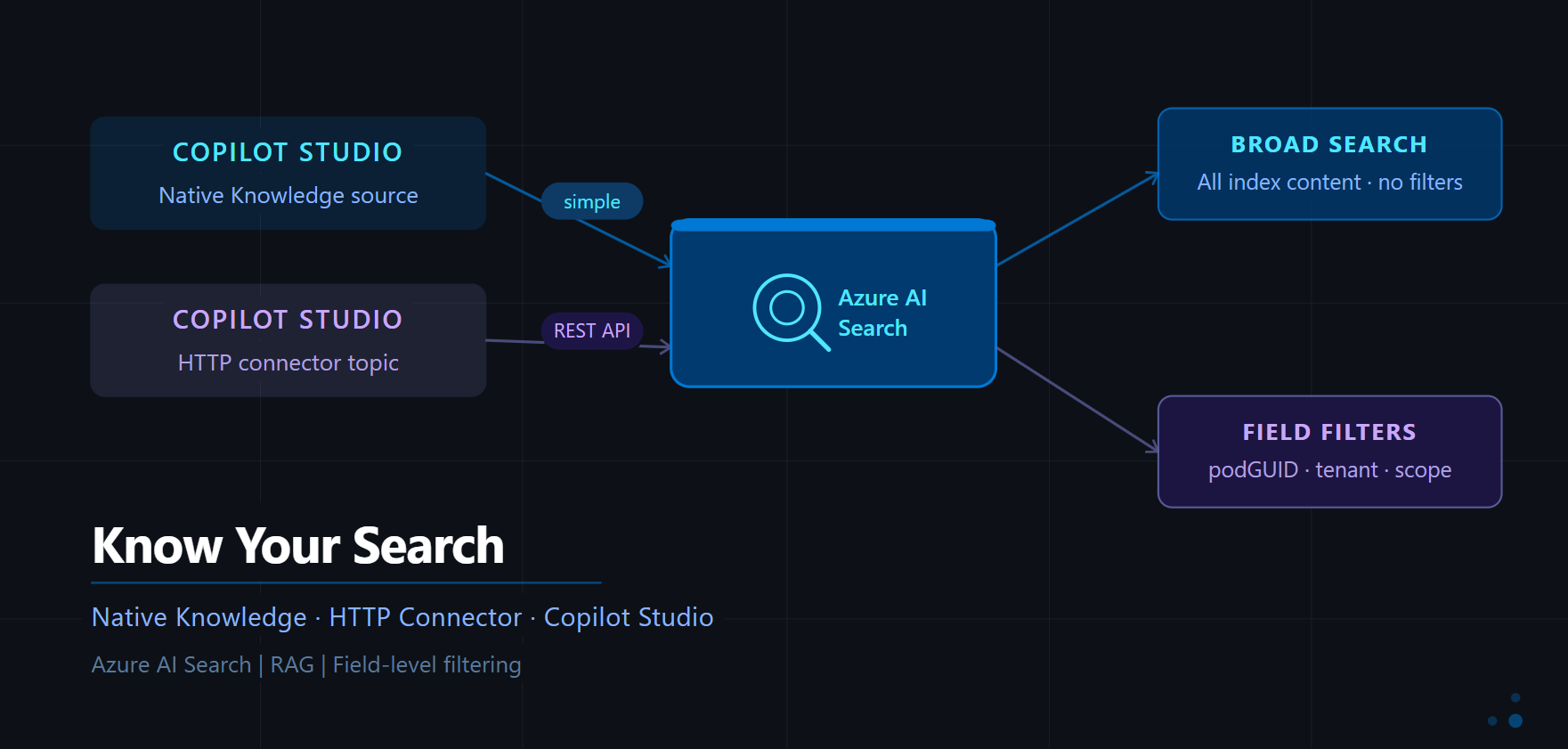
Azure AI Search can plug directly into Copilot Studio as a knowledge source — but when you need field-level filtering, the HTTP connector is your friend.
Background
Azure AI Search is a powerful retrieval layer that many teams use to build RAG-based (Retrieval-Augmented Generation) agents. Copilot Studio gives you two ways to tap into it — and picking the right one can make a real difference in how precisely your agent retrieves and grounds its answers.
Option 1: Azure AI Search as a Native Knowledge Source
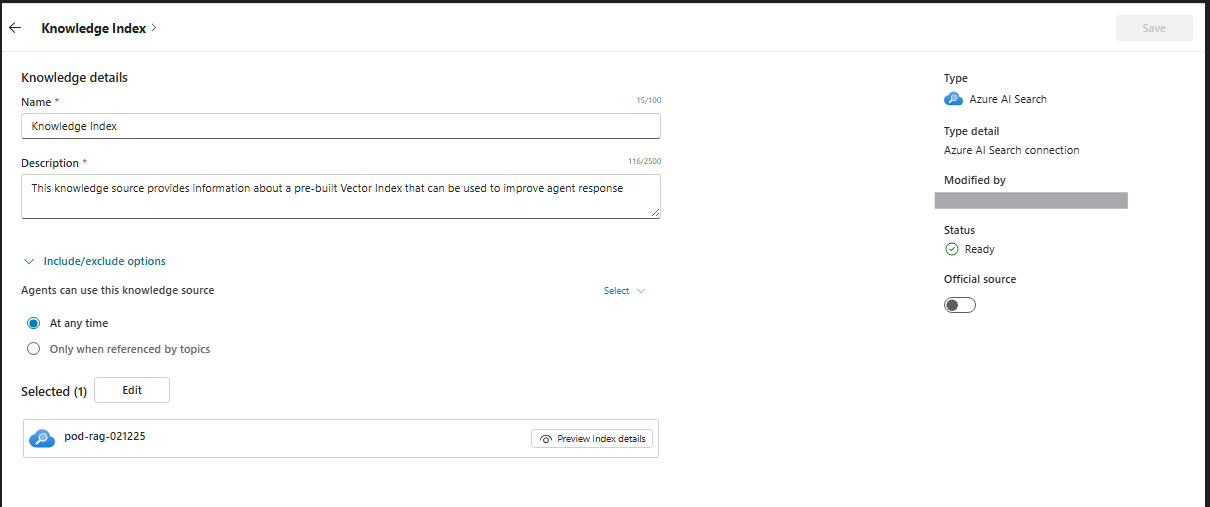
Copilot Studio allows you to directly configure an Azure AI Search index as a Knowledge source for your agent. Once connected, the agent automatically grounds its responses against that index — no custom logic needed.
How to set it up
- Go to the Knowledge section
- Add a new knowledge source and select Azure AI Search
- Provide the connection to your Azure AI Search resource
- Select the index you want the agent to search against
- Set the availability to “At any time” or “Only when referenced by topics” depending on your use case
- Hit Save
The Challenge
While this approach is clean and quick, it comes with a notable limitation — there is no way to filter on specific fields of the index. The agent will search across all content in the index, which may not be ideal when your index stores data for different document types, or scoped datasets. For example, if your index holds documents for multiple users and you want to restrict results to a specific user, native knowledge simply cannot do that.
Option 2: Azure AI Search via HTTP Connector
If you need more control over how the search is executed, the HTTP connector in a Copilot Studio topic (or a Power Automate flow called from one) lets you call the Azure AI Search REST API directly. This unlocks the full power of the Search API — including semantic configuration and field-level filters.
How to set it up
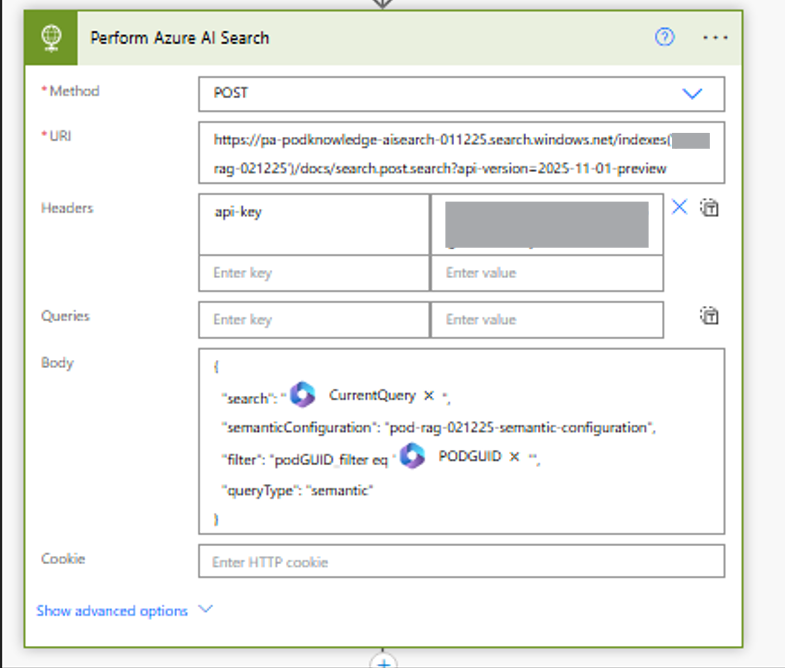
Inside a topic, add an HTTP Request action and configure it as follows:
- Method:
POST URI: https://
.search.windows.net/indexes/ /docs/search.post.search?api-version=2025-11-01-preview - Headers:
api-key: Your Azure AI Search admin or query key
- Body:
1
2
3
4
5
6
{
  "search": "<CurrentQuery>",
  "semanticConfiguration": "<Semantic-Config>",
  "filter": "<Filter-Condition>",
  "queryType": "<Query-Type>"
}
What this enables
- Semantic search: Pass a named
semanticConfigurationto use your pre-configured semantic ranker for better relevance - Field filtering: Use the
filterparameter with OData expressions to scope results — e.g., filter byuserID, document type, category, or any indexed field - Query flexibility: Control
queryType,top,select, and other parameters that the native knowledge integration doesn’t expose
Refer to the official Azure AI Search - Search Documents (POST) documentation for the full list of supported parameters.
When to Use What
| Scenario | Native Knowledge | HTTP Connector |
|---|---|---|
| Quick setup, no filter needed | ✅ | ❌ |
| Filter results by a field (e.g., user ID, tenant) | ❌ | ✅ |
| Use a specific semantic configuration | ❌ | ✅ |
| Multi-tenant index with scoped retrieval | ❌ | ✅ |
| Minimal topic complexity | ✅ | ❌ |
The native knowledge source is great for broad grounding where all content in the index is relevant. The HTTP connector is the right call when your agent needs to retrieve precisely scoped results — especially in scenarios where the same index serves multiple users or datasets.
Sandeep Angara
April 25, 2026